
Our Services
Here are some of our services

Electricians
Electricians For Your Home and Office

Plumbers
Plumbers For Your Home and Office

AC Repair
AC Repair For Your Home and Office

Packers and Movers
Packers and Movers For Your Home and Office

Beauty Services
Best Beauty Services
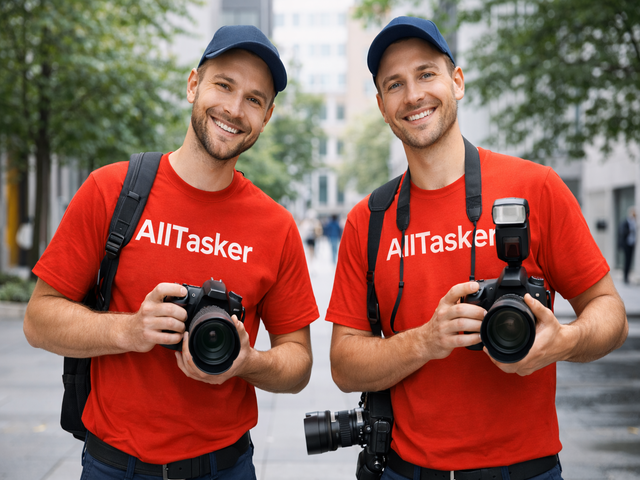
Photo Graphers
Photo Graphers Near You

Painters
Painters For All Works
F.A.Q
-
How it works
After Login -> Select your service in above available services -> Enter your basic details -> Next give your work location or address of work -> And next provide more about task, that's it, it's done. -> Our team let you know the status of your tasker details with in 15 Minutes.
-
How to allow notifications on iphone
Step 1: Important Requirements:
iOS Version: Must be 16.4 or higher.Step 2: Add the Website to Your Home Screen
1. Open Safari (or Chrome/Edge) and go to the website you want notifications from.
2. Tap the Share button (square with an up arrow) at the bottom of the screen.
3. Scroll down and select Add to Home Screen.
4. Confirm by tapping Add in the top right corner. The website will now appear as an icon on your home screen.Step 3: Grant Notification Permission
1. Locate the new icon on your Home Screen and tap to open it.
2. Inside this "web app," find the site's notification settings or click on button.
Note: iOS requires a "user gesture" (like clicking a button) before the permission pop-up appears.
3. When the system prompt appears asking if you want to allow notifications, tap Allow..
Step 4: Enable "Notifications" Feature Flag (If needed)
1. Open the Settings app on your iPhone.
2. Go to Safari > Advanced (at the bottom).
3. Tap Feature Flags.
4. Find Notifications in the list and ensure the toggle is turned ON.Step 5: Manage Settings in iOS
Once a website is added to your Home Screen, it will appear in your main iPhone notification settings like a regular app.
1. Go to Settings > Notifications.
2. Find the name of the website/web app you added.
3. Ensure Allow Notifications is toggled on and choose your preferred alert style (Banners, Lock Screen, etc.).
These resources detail how to add websites to your iPhone's Home Screen to enable push notifications, including managing settings and understanding requirements
News About All Tasker
Get All Tasker latest news and added new services information on your mail
Contact Us
You want any additional services or any concerns please contact us